
This post will detail a low-level, hands-on approach to deploying a full-featured Java application.
There are several methods for deploying Java applications, each with its own advantages and disadvantages.
These can be broadly categorized into the following three approaches:
- JVM hosting on a server, running your own Java server and applications as desired on a virtual machine, without using containers.
- CaaS (Containers as a Service) You deploy a container image, you own the runtime decisions.
- PaaS (Platform as a Service) where you deploy the Java application artifact and the platform handles everything for you.
To understand the process and details, we start with the low-level approach. While this may not be the most straightforward method in 2025, and you want something simple, I think it helps with a better understanding of the underlying mechanisms when utilizing higher-level tools and services such as CaaS or PaaS. So, let’s learn!
Let’s shorten some URLs
For this deployment exercise, I’m using this URL shortening Java service by Sven Ruppert. He has built a full-featured URL shortening service setup as an “Advent Calendar 2025” piece by piece. It is surprising how many features and moving parts a well-made application actually has.
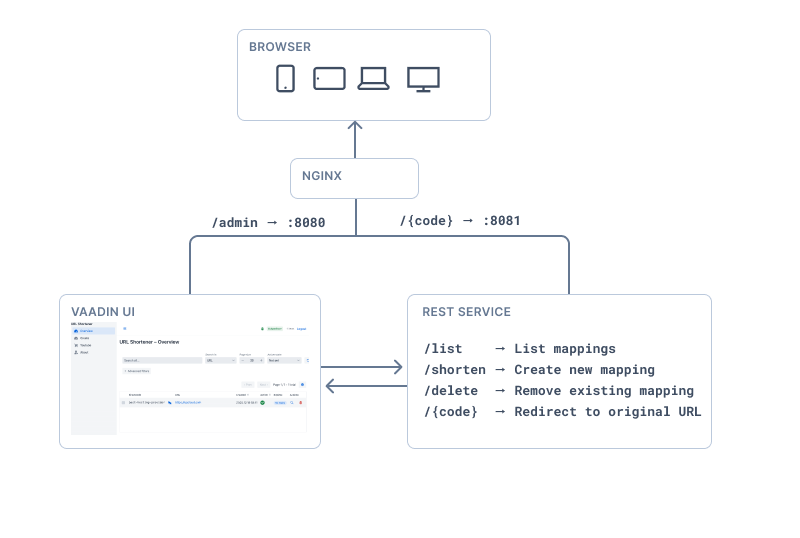
Particularly, the application is a nice example of a Vaadin administration UI for a separate public-facing service. So, we basically need to deploy and run two applications.
Furthermore, having your own local instance of URL shortening actually makes sense. Afterall, we want to send users across continents to ask for a shorter URL for a local service, right?
Where to host your application?
The first question is, where do you find a suitable hosting provider? I chose UpCloud.com, which is a European cloud provider specializing in high-performance and reliable infrastructure. Based in Helsinki, Finland, it offers local cloud solutions and a strong performance alternative to larger global providers. For this, UpCloud was a cheap way to get a full server.
Steps for a new virtual Linux server
Once you create an account at upcloud.com you get a free 7-day trial to play around and check that everything works for free. For testing deployment, we chose the cheapest possible server. We only have two light-weight services running: the URL shortening service and the Vaadin-based management UI. And we don’t need large resources for them.
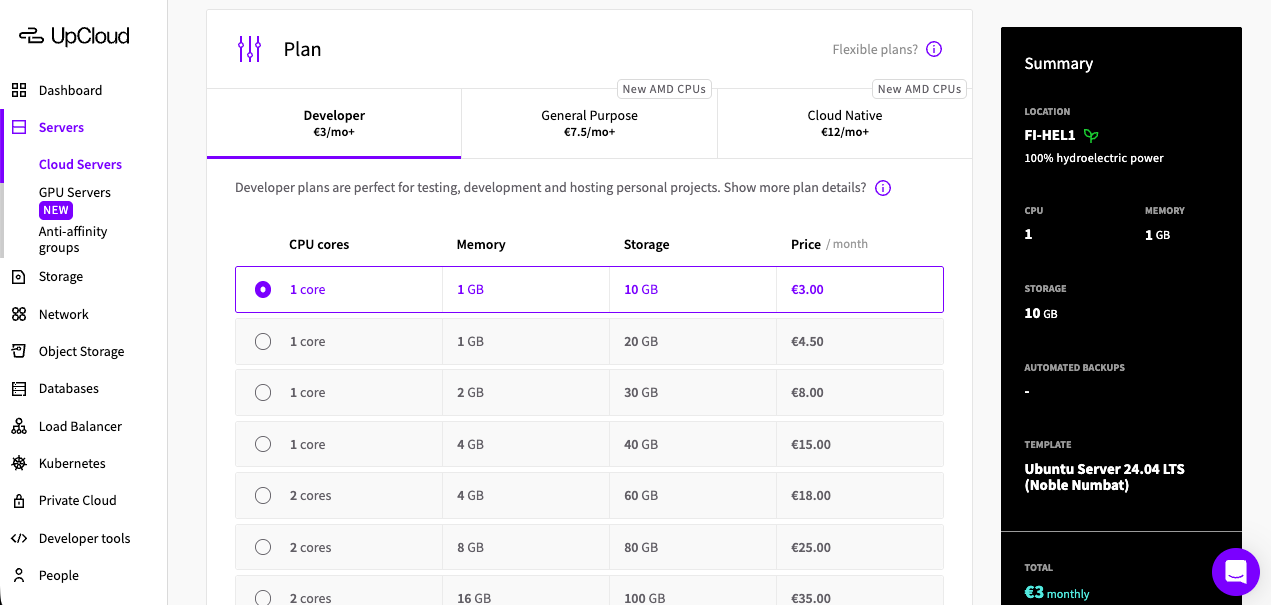
Creating a minimal server:
- Deploy a new server (1GB / 10 GB / €3 / Month is plenty for an application like this)
- Encrypted storage (just for the sake of it)
- Operating system: Ubuntu Server 24.04 LTS (Noble Numbat)
- Login Method: SSH Keys (link: how to create local SSH keys)
Connecting the new server with SSH and setting up the system:
- How to connect: ssh root@80.69.172.111
Update the system:
apt update && apt upgrade - Install the latest Java Development Kit:
apt install openjdk-25-jdk-headless - Create a separate user account for the application and switch to that:
useradd url-app-user --create-home --home /home/url-app-user --shell /bin/bash
Building and running the URL shortening service:
- Make sure you are acting as the correct user:
su -l url-app-user - Clone the original app from GitHub (or create/clone your own fork):
git clone -b develop https://github.com/svenruppert/url-shortener - Checkout the right branch for deployment:
cd ~/url-shortener && mvn -DskipTests clean install
(first build takes time, but next ones are faster) - Start the URL shortener service itself:
java -jar ~/url-shortener/urlshortener-server/target/urlshortener.jar & - Test the service by shortening an url using internal REST API:
curl -X POST http://localhost:9090/shorten -H "Content-Type: application/json" -d '{"url":"https://upcloud.com", "alias": "best-hosting-provider"}'and
curl -i localhost:8081/best-hosting-provider
Running the management UI:
Note: Do these steps with the dedicated url-app-user account.
-
Download and extract the Jetty server runtime for running the app:
wget https://repo1.maven.org/maven2/org/eclipse/jetty/jetty-home/12.1.5/jetty-home-12.1.5.tar.gz && tar xfz jetty-home-12.1.5.tar.gz && export JETTY_HOME=~/jetty-home-12.1.5
-
Create a public base folder:
mkdir ~/jetty-base && cd ~/jetty-base
-
Configure the server features we need:
java -jar $JETTY_HOME/start.jar --add-modules=http,ee11-deploy,ee11-annotations,graceful
-
Change the default password in application properties:
nano ~/urlshortener-ui/src/main/resources/auth.properties
-
Rebuild the management UI:
cd ~/url-shortener/urlshortener-ui && mvn clean package -DskipTestls
-
Deploy the management UI application to the server:
cp ~/url-shortener/urlshortener-ui/target/ROOT.war ~/jetty-base/webapps/
-
Start the server: cd ~/jetty-base && java -jar $JETTY_HOME/start.jar jetty.server.stopAtShutdown=true &
-
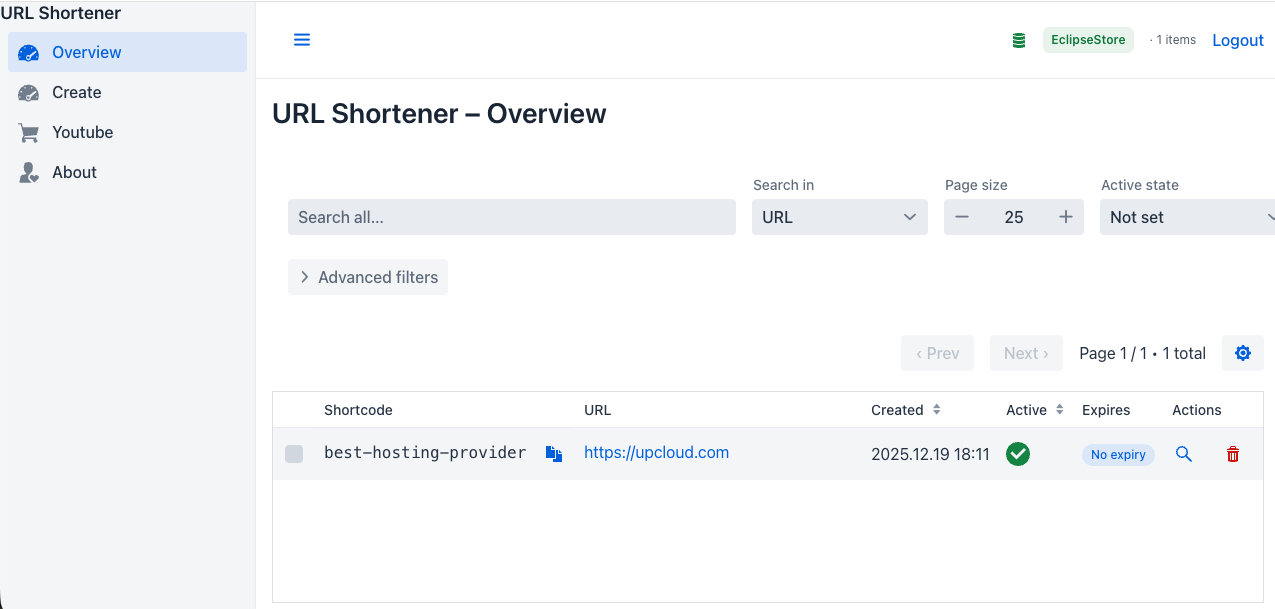
You can now access the Management UI in your browser here: http://80-69-172-111.fi-hel1.upcloud.host:8080 but we will change the port later when the front proxy is configured.
Configure more public HTTP port using nginx:
Note: You need to be root to be able to configure nginx like this.
- Install nginx: apt install -y nginx
- Copy the the default redirects: cp ~/url-shortener/nginx-example-config /etc/nginx/sites-available/app
- Reload the nginx configuration: systemctl reload nginx
- Test redirects with your browser: http://80-69-172-111.fi-hel1.upcloud.host/best-hosting-provider
- Access the Management UI in your browser http://80-69-172-111.fi-hel1.upcloud.host/management
Now you can change the Jetty server to be available for localhost only.
- Change the jetty.http.host=127.0.0.1 so that server is only available to local nginx proxy and not anymore publicly in port 8080:
su url-app-user -c 'nano ~/jetty-base/start.d/http.ini'
Upgrading to secure SSL connections:
- Install Certbot: apt install -y python3-certbot-nginx
- Make sure you have your real public server_name instead of _ in nginx config. Edit the file: nano /etc/nginx/sites-available/app
- Run Certbot to install the certificates for the host. This is an interactive process: certbot --nginx
- Now you have SSL connection for redirects like https://80-69-172-111.fi-hel1.upcloud.host/best-hosting and the management https://80-69-172-111.fi-hel1.upcloud.host/management
And we are ready for production. Almost.
Lots of steps there, right? But by now, you have everything up and running, and you are ready to do some URL shortening in real life. The light-weight shortening service itself and the Vaadin-based management UI are both up and running in your own server ready for production.
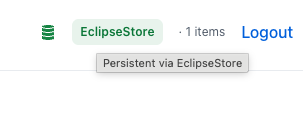
In this two-service setup, the admin UI detects when the service is
unavailable and switches to in-memory mode if it’s not running.
You might have still noticed a couple of things that you might want to still change for your own setup:
- My host name 80-69-172-111.fi-hel1.upcloud.host is not actually a short name, and does not likely make any URLs any shorter, so the next thing on my todo list is to find a nicer domain name and configure my server to use that.
- The service is run manually and not restarted at boot. You want the system to start the shortening service and management UI automatically when rebooted.
UpCloud also offers a K8s upgrade and a Kubernetes control plane to deploy and manage containerized applications. Should we look into that next? Let me know in the comments.
Resources:
- URL Shortening Java Service (GitHub): svenruppert/url-shortener
- Hosting Provider: UpCloud.com
- Guide on Creating SSH Keys: How to Create Local SSH Keys
- Jetty Server Runtime Download: jetty-home-12.1.5.tar.gz
- Example Management UI Access: Management UI Example URL