
In this guide, you’ll learn how to copy components from Figma and paste them into Vaadin as Java or React code using Vaadin Copilot’s Figma Importer API.
This article is based on:
Before we begin
To have the best experience while working with frontend files, it is highly recommended to turn on Vite hot files reload by setting system property vaadin.frontend.hotdeploy to true.
It can be easily done by adding vaadin.frontend.hotdeploy=true to application.properties in your Spring Boot application.
Figma components
Many companies like Vaadin have their own Figma design system to create new mockups and designs. There are also design systems publicly available in the Figma library, like Simple Design System.
In Vaadin Copilot 24.9 we introduced the Figma Importer API. It allows importing Figma components into Vaadin applications based on component definition.
In this article we are showing how to connect all pieces together and make Figma copy - Vaadin paste possible.
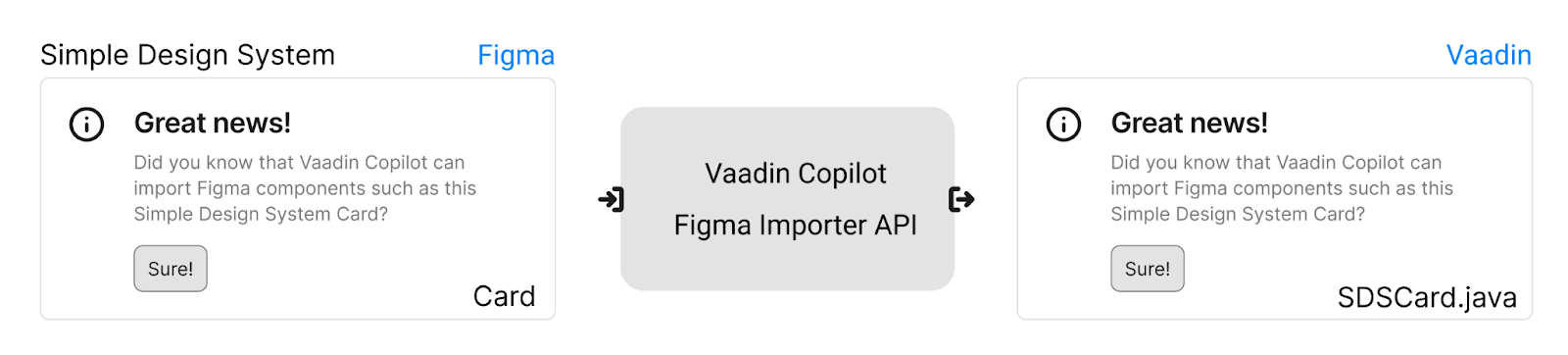
Figma Importer API used to map Simple Design System Card into Java SDSCard component.
We can think about importer as a mapping between Figma and Vaadin worlds. In the above sketch you might notice that Figma Card has been converted into a Java component, which is one of components in our custom project.
Components and instances in Figma can be compared to classes and instances in Java. Each component can have properties that are linked to its parts and can be set with different values in each instance.
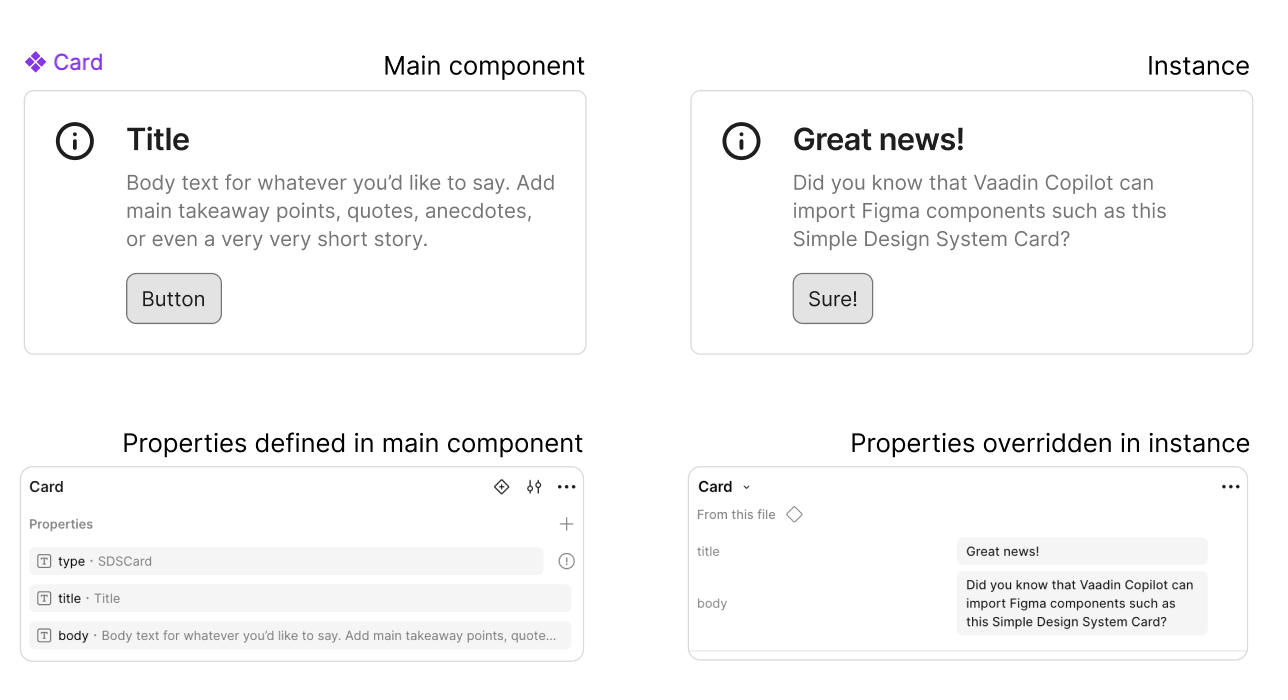
Properties in main component and instance.
The main component (on the left) has a set of properties defined which are overridden in its instance (on the right). Check component properties Figma yourself.
Marker property
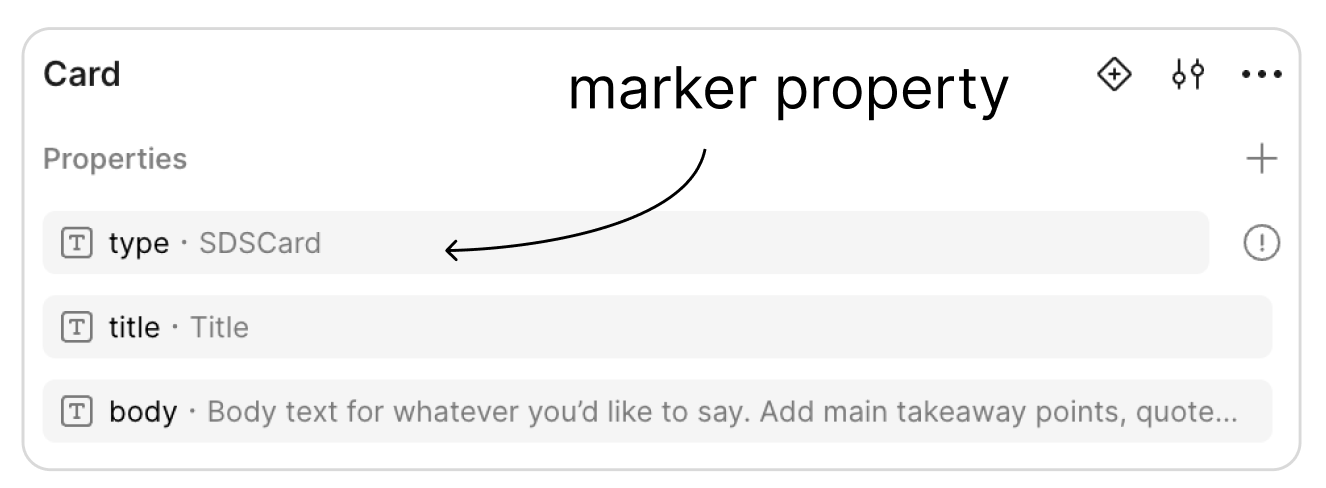
Marker property that will be used to distinguish importer.
While creating Figma Importer, we need to distinguish components that are being imported. The most convenient way is to introduce property with unique value (called marker property). In the above example type is the marker property. Importer will be applied for components with expected marker property value only (node.properties.type === 'SDSCard').
Button has marker property type with value SDSButton.
Target Java and React components
To create an importer we need to be aware of the API of target components. In our case it will be SDSCard and SDSButton Java and React components.
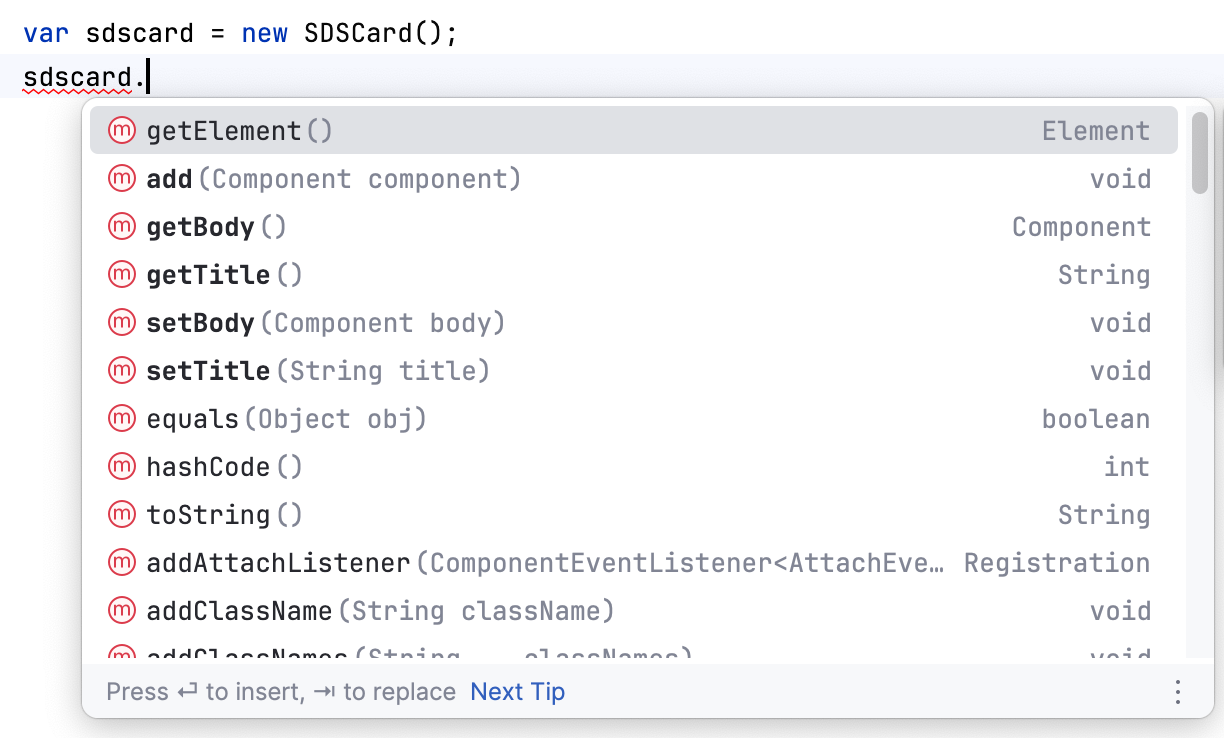
Java component API for SDSCard.
If we would like to create component instances manually those will look like:
Creating SDSCard and SDSButton Java instances manually.
And using React:
Creating SDSCard and SDSButton React elements manually.
In the demo project used in the next parts of this article SDSCard and SDSButton components are already present.
Importer API
After setting up component properties in Figma design, we might continue implementing the importer. Importers are TypeScript functions that return ComponentDefinition for handled components.
SCSCard Java importer
To enable pasting SDSCard from Figma to Java project we need to create an importer. In case of multiple importers it might be good practice to store them in separate files. Let’s create importer like below and save it into frontend/sdscard-java-importer.ts:
Complete importer example for SDSCard.
Let’s analyze above code snippet:
Types and functions required for creating an importer. Using imports explicitly mentioned above, IDE might warn that imports will not work in development. They are omitted in other examples.
Importer is a function that accepts FigmaNode and ImportMetadata and should return ComponentDefinition if matches currently handled node or undefined otherwise.
The importer must check if it is applicable for current FigmaNode. In above we are also checking if target code should be Java (Vaadin Flow).
Above we can see the structure of ComponentDefinition for Java (for React it will be slightly different, see in next chapters). Props are the properties which will be mapped to Java fields or React attributes, children will be used as Java subcomponents (using .add(Component component) from Vaadin Flow) or subelements in React.
Properties are the map of property name and value. Value might be TypeScript simple type, Record or ComponentDefinition. In the current example title is a string and body is a ComponentDefinition of Span component.
Children is an array of child components or string values. To do a children component lookup we can use createChildrenDefinitions with a given filter. To understand the point behind example above we need to look at structure of Figma component:
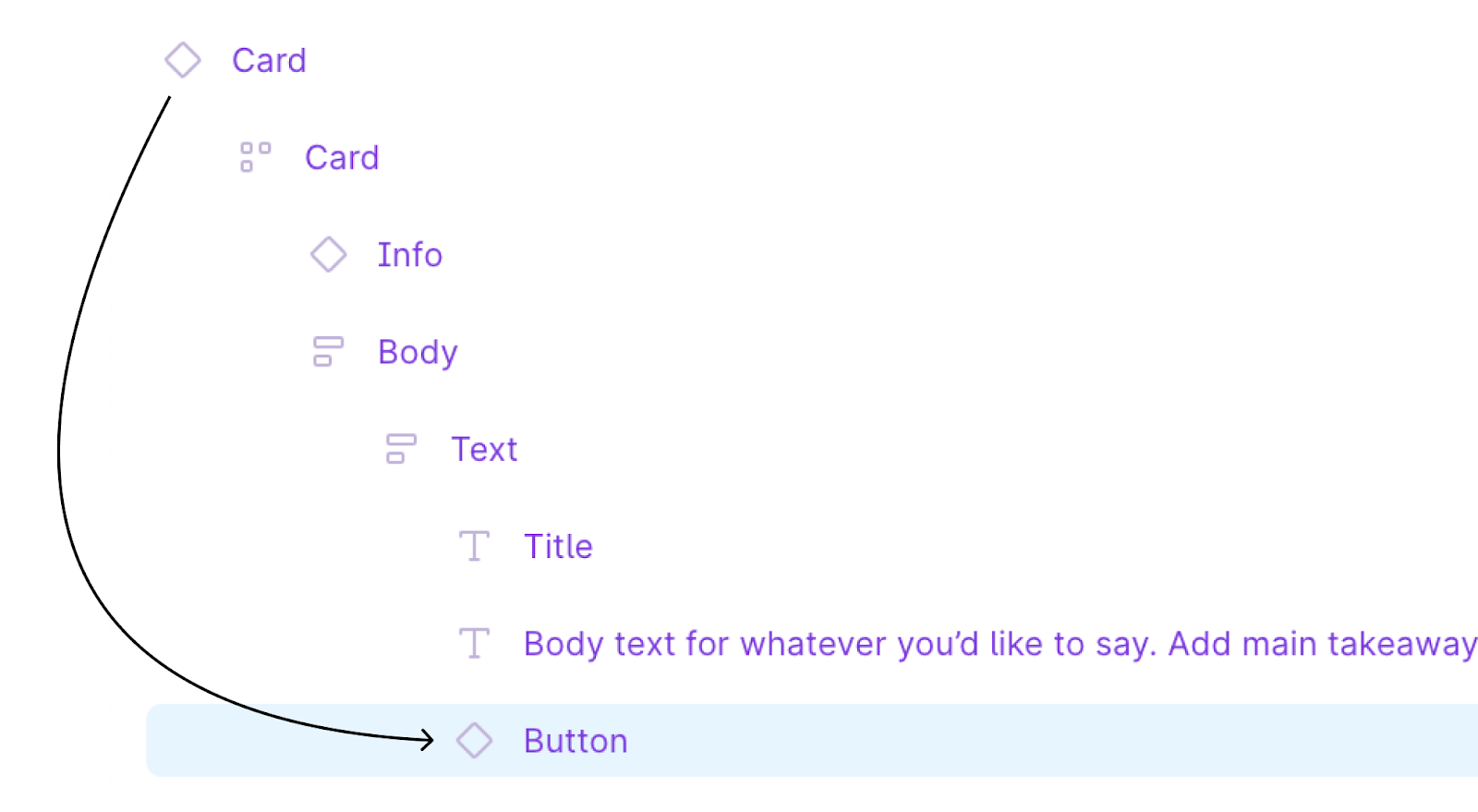
Structure of Figma Card component and Button instance location.
Button instance is not a direct child of Card instance. If we import all children that Card has, there might be frames, groups and layouts. Using the filter we can pick instances we want.
Importers must be registered using registerImporter.
Finally we need to add an importer to be available in development mode.
For Flow (Java) projects use @JsImport in your main application class:
SDSButton Java importer
Button is separate component so good practice is to create separate importer, let’s create it in frontend/sdsbutton-java-importer.ts:
As you can see it has a similar, slightly simplified structure like SDSCard Java importer. It only has one property named label and no children.
We need to import it, for Flow, in application class:
And for React, in index.tsx:
SDSCard React importer
Let’s see how SDSCard importer for React might look like and save it into frontend/sdscard-react-importer.ts:
For React we need to define the import source of SDSCard (Frontend/components/SDSCard). In the above example we are defining one child (<span slot=”body”>) manually and then add all found SDSButtons as subelements.
Add one more import for Flow, in application class:
And for React, in index.tsx:
SDSButton React importer
And now time for last importer (frontend/sdsbutton-react-importer.ts):
All four importers for Flow, in application class:
And for React, in index.tsx:
Importers might be organized differently by user - grouped by language (Java or React), or placed in a single file.
Generated code
Using importers above after copying and pasting Figma card following code snippets will be generated.
Java generated code
React generated code
Working demo project
Try to copy and paste card component from the Figma project by yourself using Figma importers by yourself in the following GH project.
Company Components demo project
More complex examples (multiple importers, components as properties, children filtering) can be found at CompanyComponents GitHub project. Figma design for the project can be found here.
Changes in upcoming Vaadin 25
In Vaadin 25 methods _registerImporter and _createChildrenDefinitions will be renamed to registerImporter and createChildrenDefinitions.